 Abacalist

 Português
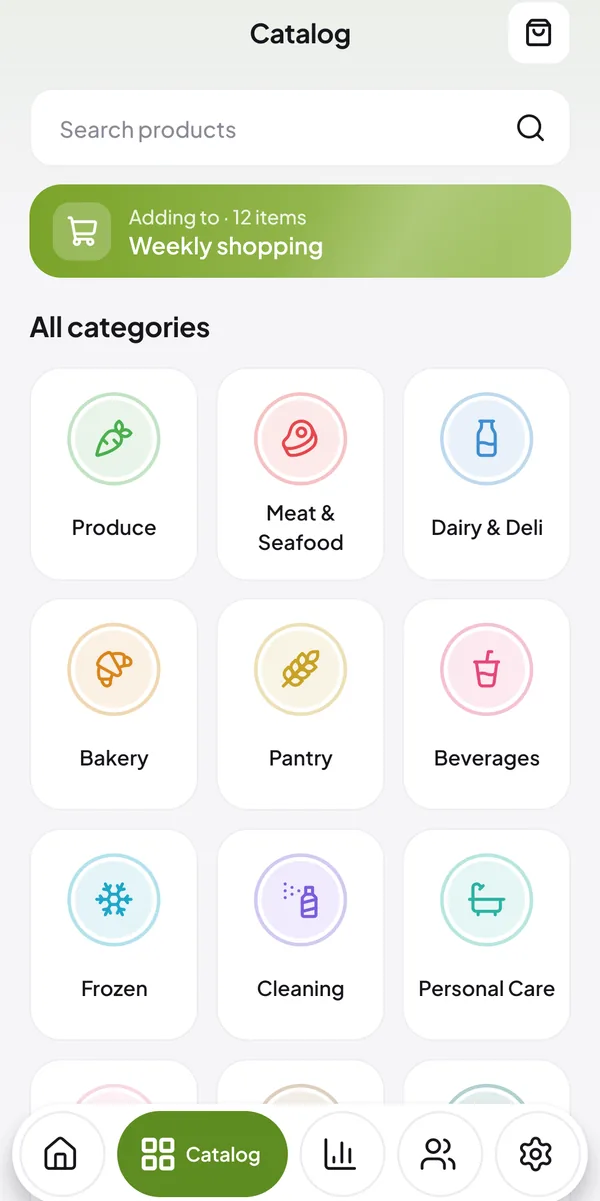
How to use it
From a category to your list, no typing.
Open the Catalog
In the bottom menu, tap Catalog. Products are sorted by category, like Produce, Meat & Seafood and Pantry.
Check the list
At the top, Adding to shows the list that gets the products. To use another one, tap Switch: you can even create a new list there.
Find the product
Open a category or look it up in Search products.
Tap +
Each tap adds one to your list, and the product gets an on list tag. Made a mistake? Tap − to take it out.
Open the list
Tap Open list to see everything you picked, already sorted by store section.
Set quantity and price
In the list, tap the item to change the quantity, price and category. The total updates right away.
Common questions
Quick answers to what people ask most.
What if the product isn't in the catalog?
Type it straight into the list, in the E.g. Rice field. The app suggests names and files it in the right section.
I bought different flavors of the same product. How do I add them?
You can split the item into several, each with its own name and price.
Can I create my own categories?
Yes. In Settings, create categories like Stationery or Parties.