 Abacalist

 Português
How to use it
From the store aisle to a new list.
Swipe the item right
At the store, if you can't find a product, swipe the item to the right. It moves to Out of stock.
Mistake? Undo it
Right after, a message shows up with Undo. If you find the item later, swipe again and it goes back to the list.
See what was missing
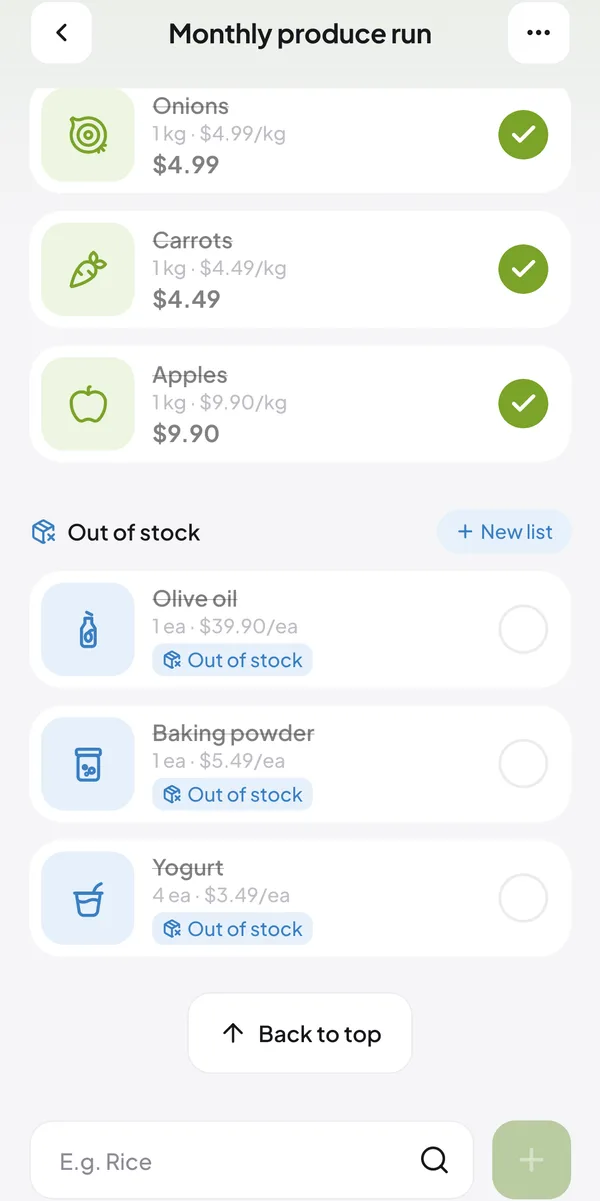
The items stay together in the Out of stock section, apart from what you still have to grab and what's already in the cart.
Create a list with them
Tap + New list, next to Out of stock. The items go to a new list, to buy somewhere else or later.
Open the new list
It gets the original list's name with “· out of stock” at the end. Tap Open in the message to go straight to it.
Check the home screen
Each list shows how many items were out of stock, and so does the summary of a finished trip.
Common questions
Quick answers to what people ask most.
I marked it out of stock, then found it. Now what?
Swipe again and it goes back to the list.
How do I remove an item from the list?
Swipe the item to the left.
Where do I see how many items were out of stock?
On the home screen: each list shows how many items were out of stock.