 Abacalist

 Português
How to use it
Both live in Settings, under Shopping.
Save your stores
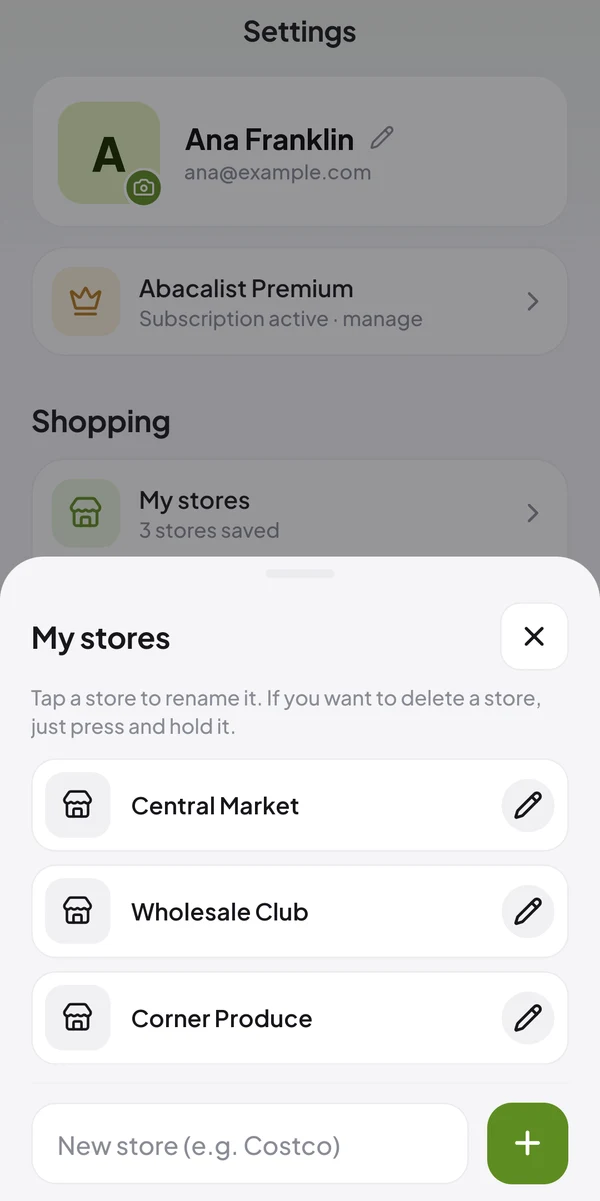
In Settings, tap My stores, type the name and tap +.
Pick the store for each trip
When you create a list, choose the store. To change it later, tap the store at the top of the list.
Rename or delete
In My stores, tap a store to rename it, or press and hold to delete it. Your price history is kept.
Create a category
In Settings, tap Categories and then New category. Give it a name (e.g. Office Supplies) and pick an icon.
Use it on items
When editing an item, tap the category right below its name and choose yours. The item moves to that section of the list.
Edit anytime
Tap one of your categories to change its name or icon. The app's default categories can't be changed.
Common questions
Quick answers to what people ask most.
Do I have to save stores?
No, it's optional. But with the store set, you know where you paid each price, and Reports show how much you spent at each one.
What happens if I delete a store?
Its lists end up with no store set, and the price history stays.
What if I delete one of my categories?
Its items move to Other.