 Abacalist

 Português
How to use it
From your first list to the next trip.
Create the list
On the home screen, tap +. Give it a name (e.g. Monthly groceries) and pick an icon so you can spot it fast.
Choose the store
Still on that screen, under Store, say where you're shopping. It's optional, and you can change it later by tapping the store at the top of the list.
Follow it from the home screen
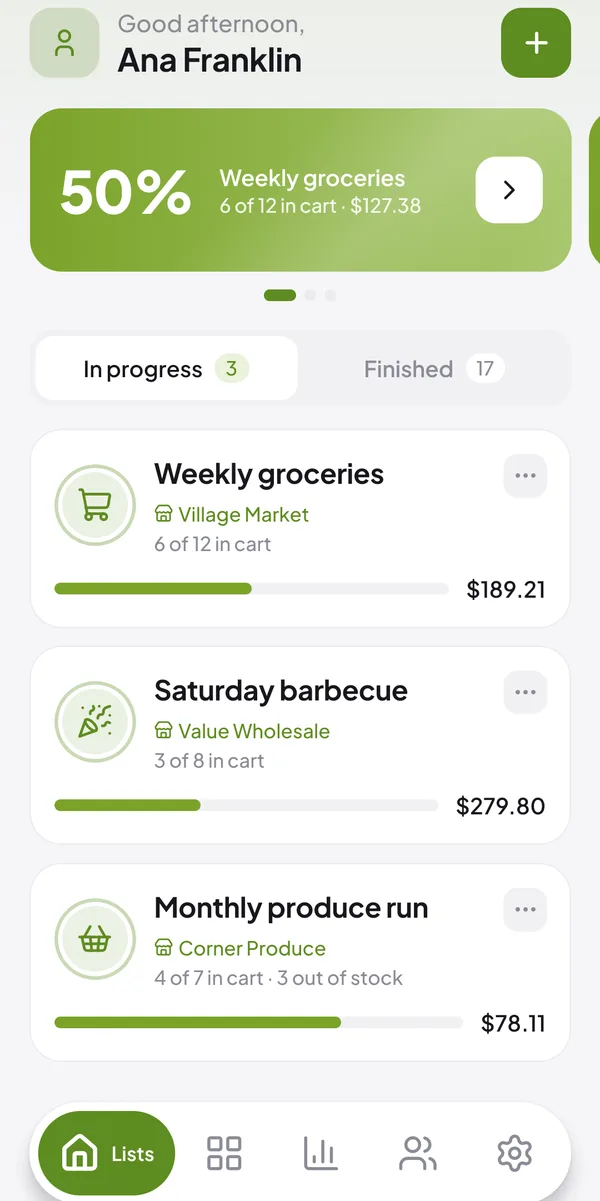
Under In progress, each list shows how many items are in the cart, how many were out of stock and the total so far.
Finish the trip
In the list's three dots, tap Finish shopping. It moves to Finished with the total you spent.
Buy again
On a finished list, tap the three dots and choose Buy again: you get a new list with the same items, all unchecked.
Keep lists tidy
The three dots also let you Rename, Duplicate or move a list to the trash. The Trash is in Settings, and you can restore lists from it for a while.
Common questions
Quick answers to what people ask most.
Can I repeat a shopping trip?
Yes. Tap the three dots of a finished list and choose Buy again: you get a new list with the same items.
Do I have to choose a store?
No, it's optional. But with the store set, you know where you paid each price.
I deleted a list by mistake. Now what?
It stays in the Trash, in Settings, for a while, and you can restore it.
Read next
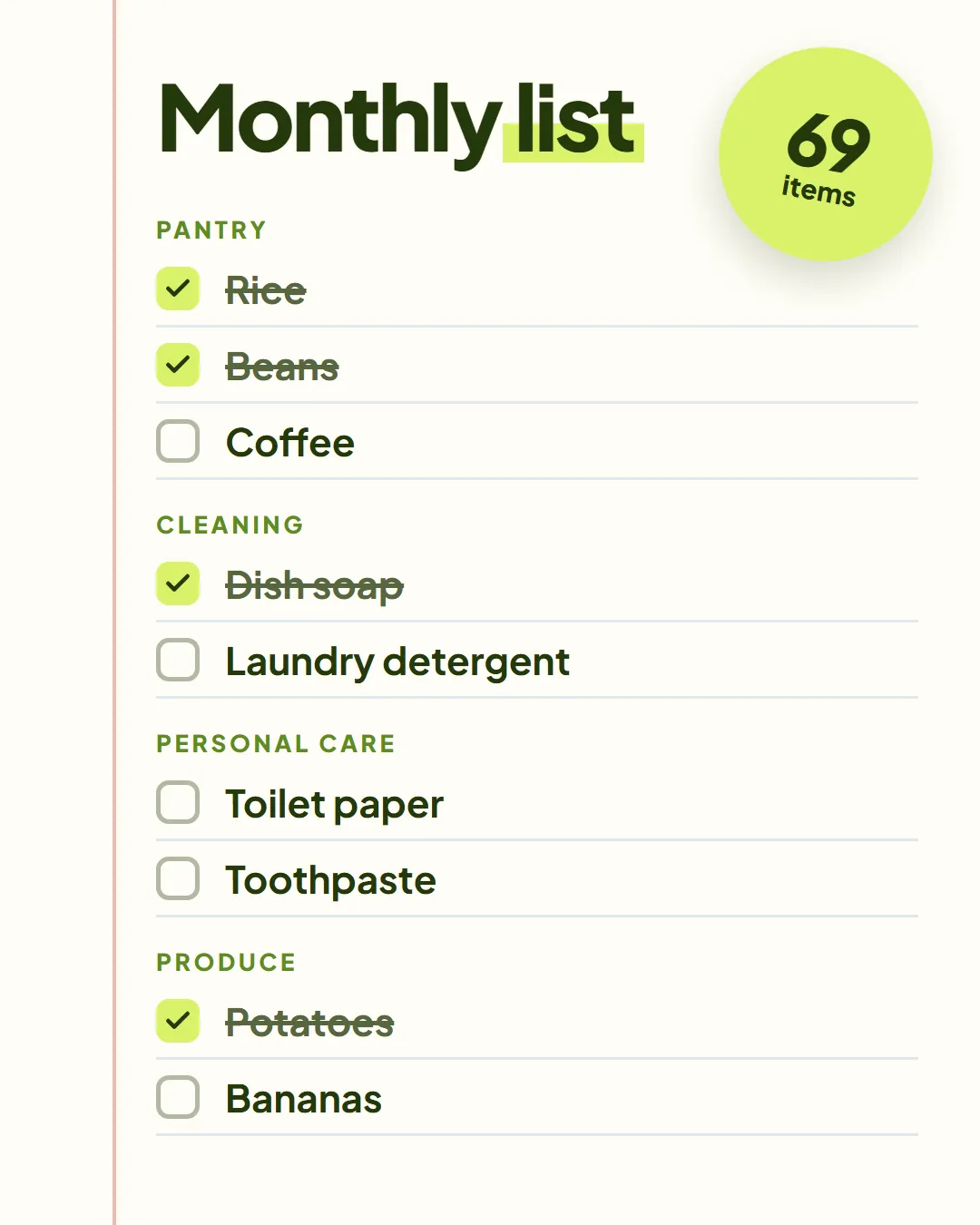
A starter list, sorted by store section, to build yours from.
Article · 3 min readRead →